Category: WordPress

  • Why We Built Our Own AI-Powered WordPress Translation Plugin for Website Localisation?

    Why We Built Our Own AI-Powered WordPress Translation Plugin for Website Localisation?

    As a premium WordPress agency UK, we’ve helped businesses expand into new markets by building multilingual websites that are fast, scalable, and easy to manage. Over the years, we’ve delivered multilingual solutions for corporate websites, manufacturers, service providers, and content-heavy platforms. While creating content in multiple languages sounds straightforward, the reality is that website localisation involves far more than translating text. It means preserving your brand voice, maintaining SEO, keeping terminology consistent, and ensuring every language version stays aligned as your website evolves.

    Like many agencies, we started with established tools. WPML became our preferred choice because it provides a solid multilingual foundation for WordPress. For translation quality, we integrated DeepL, which consistently produced more natural results than many alternatives, especially for technical and business content.

    At first, our workflow looked simple.

    Editors would publish content in English, send it for translation, review the translated pages, and publish them.

    Simple enough.

    But after working on several multilingual projects, we noticed something interesting. Nobody was struggling with translation itself. They were struggling with everything around it. That’s when we realised we weren’t dealing with a translation problem anymore, we were dealing with a workflow problem.

    WPML Solves a Lot but Every Business Works Differently

    Before going any further, it’s worth saying this clearly.

    WPML is one of the best multilingual plugins available for WordPress. It solves an incredibly complex problem and has been the backbone of many of our multilingual projects.

    It handles language relationships, translated posts, taxonomies, menus, URLs, language switchers, and all the technical pieces that make multilingual WordPress websites possible.

    We had no intention of replacing it. Instead, we wanted to build on top of it. Every client had slightly different requirements. One wanted translations published immediately. Another wanted every translated page saved as a draft until their marketing team reviewed it. Some wanted only Pages translated. Others wanted Products, Case Studies, FAQs, Technical Documents, and custom post types translated automatically whenever English content changed. These weren’t limitations of WPML, they were business workflows that needed additional automation.

    That’s where our plugin began.

    Why We Chose DeepLWhy We Chose DeepL

    We experimented with several machine translation providers before settling on DeepL.

    The difference became obvious when translating technical documentation and industry-specific content.

    Instead of producing literal translations, DeepL generally understood the context better, resulting in content that required far less manual editing. Of course, no machine translation is perfect. There will always be situations where human review is essential. But if automation can produce an accurate first draft, editors spend far less time rewriting content and far more time refining it. Calling the DeepL API wasn’t the difficult part. Building a reliable workflow around it was.

    Translation Is Only One Part of Website Localisation

    One thing we’ve learned while working on multilingual website development projects is that translation and website localisation are often treated as the same thing. They’re not.

    Translation converts text from one language into another. Website localisation adapts the entire user experience for a specific audience.

    That includes:

    • Local terminology
    • Product names
    • Brand messaging
    • SEO metadata
    • URL structures
    • Images
    • Dates and time formats
    • Measurement units
    • Currency formats
    • Cultural differences

    For example, a page translated into Italian may be grammatically correct, but that doesn’t necessarily mean it feels natural to an Italian audience.

    Localisation ensures the website feels as though it was originally created for that market.

    That’s the approach we wanted our plugin to support.

    Building Around Real Client Projects

    Instead of writing a long specification document, we built the plugin around real client feedback.

    Every time someone asked,

    “Can translations stay as drafts until marketing approves them?”

    or

    “Can we stop this product name from being translated?”

    or

    “Can the plugin automatically translate new content after publishing?”

    we added it to our roadmap.

    Over time, the plugin evolved from a simple automation tool into a complete translation workflow.

    Some of the features that naturally emerged included:

    • Automatic translation after publishing English content
    • Translation queue management
    • Batch processing
    • Translation logs
    • Glossary synchronisation
    • Draft or automatic publishing options
    • Support for custom post types
    • Background processing for large websites

    None of these ideas came from brainstorming sessions.

    They came directly from solving problems our clients experienced every day.

    Connecting WPML and DeepL Was Only the BeginningDeepL Was Only the Beginning

    On paper, integrating WPML with DeepL sounds straightforward.

    In reality, it introduced dozens of edge cases.

    For example:

    • What happens when an editor updates only one paragraph?
    • Should the entire page be translated again?
    • What if DeepL is temporarily unavailable?
    • How do we retry failed translations?
    • How do we avoid translating navigation labels?
    • How do we preserve HTML attributes?
    • What about SVG icons?
    • How do we avoid translating Gutenberg block settings?

    These questions became the real project.

    One issue that took more time than expected involved SVG content.

    Some Gutenberg blocks contained inline SVG icons. During translation, certain attributes were being modified, causing icons to break on the frontend.

    The solution wasn’t to improve translation, it was teaching the plugin exactly what should never be translated.

    That turned out to be just as important as translating the visible content.

    Gutenberg Was More Challenging Than We Expected

    People often think a WordPress page is just text.

    Modern WordPress simply doesn’t work that way.

    A single page may contain:

    • Nested Gutenberg blocks
    • Custom blocks
    • Dynamic content
    • ACF fields
    • HTML attributes
    • JSON configuration
    • Shortcodes
    • Inline SVG graphics

    Some parts should be translated.

    Others absolutely shouldn’t.

    A significant amount of development time went into recursively processing Gutenberg blocks while preserving their structure.

    Without that, translated pages could easily become broken.

    It’s one of those technical challenges users never see, but they definitely notice when it isn’t handled correctly.

    Building a Queue Instead of Waiting for Timeouts

    Our first version worked perfectly until someone tried translating hundreds of pages at once.

    That’s when reality hit.

    • Servers timed out.
    • Memory limits were reached.
    • API requests failed.

    Editors weren’t sure whether translations were still running or had stopped completely. Instead of trying to translate everything in one request, we introduced a queue system. Every translation became a background job. The plugin processes jobs in manageable batches while editors continue working normally. For large multilingual websites, this completely changed the experience.

    Instead of wondering whether something had failed, editors could see exactly what was happening.

    • Pending.
    • Processing.
    • Completed.
    • Failed.

    If necessary, failed translations could simply be retried instead of restarting everything from scratch.

    Why Glossaries Became One of Our Favourite Features

    Machine translation is impressive. But it doesn’t know your business. It doesn’t know that your product name should remain unchanged. It doesn’t know your marketing slogan is trademarked. It doesn’t know your preferred technical terminology. That’s why glossary management became one of the most valuable parts of our plugin. Editors can upload approved terminology, manage it within WordPress, and synchronise it with DeepL. Whenever content is translated, those glossary terms are respected automatically.

    For companies with specialised terminology, this dramatically improves website localisation by keeping language consistent across hundreds or even thousands of pages.

    Translation Logs Save More Time Than You Think

    Automation only works when you trust it.

    One of the earliest requests we received was surprisingly simple.

    “Can we see what’s happening?”

    That question led us to build detailed translation logs.

    Editors can track:

    • Translation progress
    • Completed jobs
    • Failed requests
    • Processing history
    • Retry attempts

    Instead of checking server logs or guessing whether something worked, everything is visible from within WordPress.

    Sometimes the best feature isn’t automation.

    It’s transparency.

    SEO Is Part of the Translation Process

    One lesson we’ve learned through multilingual website development is that translating page content alone isn’t enough.

    Search engines also need translated:

    • SEO titles
    • Meta descriptions
    • Open Graph content
    • Slugs
    • Schema markup
    • Image alt text

    Ignoring these elements often leads to inconsistent search visibility across different languages.

    Our goal has always been to support a complete localisation workflow, not simply page translation.

    Automation Shouldn’t Remove Human Control

    One concern clients often have is losing editorial control. We felt exactly the opposite. Automation should remove repetitive work, not decision making. That’s why our plugin allows businesses to choose how translations are handled. Some organisations publish translations immediately. Others prefer drafts for review. Some translate only selected post types. Others automate everything. Every organisation works differently. The software should adapt to those workflows rather than forcing everyone into the same process.

    More Than a Translation Plugin

    Looking back, the plugin isn’t really about translation anymore. It’s about making multilingual website development easier to manage.

    Today it helps businesses:

    • Automate repetitive tasks
    • Keep terminology consistent
    • Reduce manual translation work
    • Track translation progress
    • Improve website localisation
    • Scale multilingual websites without adding administrative overhead

    Why Custom Development Still Matters

    There are thousands of excellent WordPress plugins available. We use many of them ourselves. But every now and then, a business grows beyond what off-the-shelf software can comfortably handle. That’s where custom development delivers real value. As a WordPress agency, we don’t begin projects by asking,

    “Which plugin should we install?”

    We begin by asking,

    “What’s slowing your team down?”

    Sometimes the answer is automation. Sometimes it’s integration. Sometimes it’s building something entirely new.

    Our translation plugin exists because we kept encountering the same workflow challenges across multiple client projects and decided to solve them once instead of solving them repeatedly.

    Building the Plugin Was Only Half the Job

    Software is never truly finished.

    • WordPress evolves.
    • WPML receives updates.
    • DeepL introduces new API capabilities.
    • PHP versions change.
    • New Gutenberg blocks appear.

    Every update has the potential to affect custom functionality. That’s why every solution we build is supported through our managed web service. Our work doesn’t end when a plugin is launched.

    We continue maintaining compatibility, monitoring performance, improving workflows, fixing issues, and introducing new features as our clients’ needs evolve.

    Reliable software isn’t something you build once. It’s something you continuously improve.
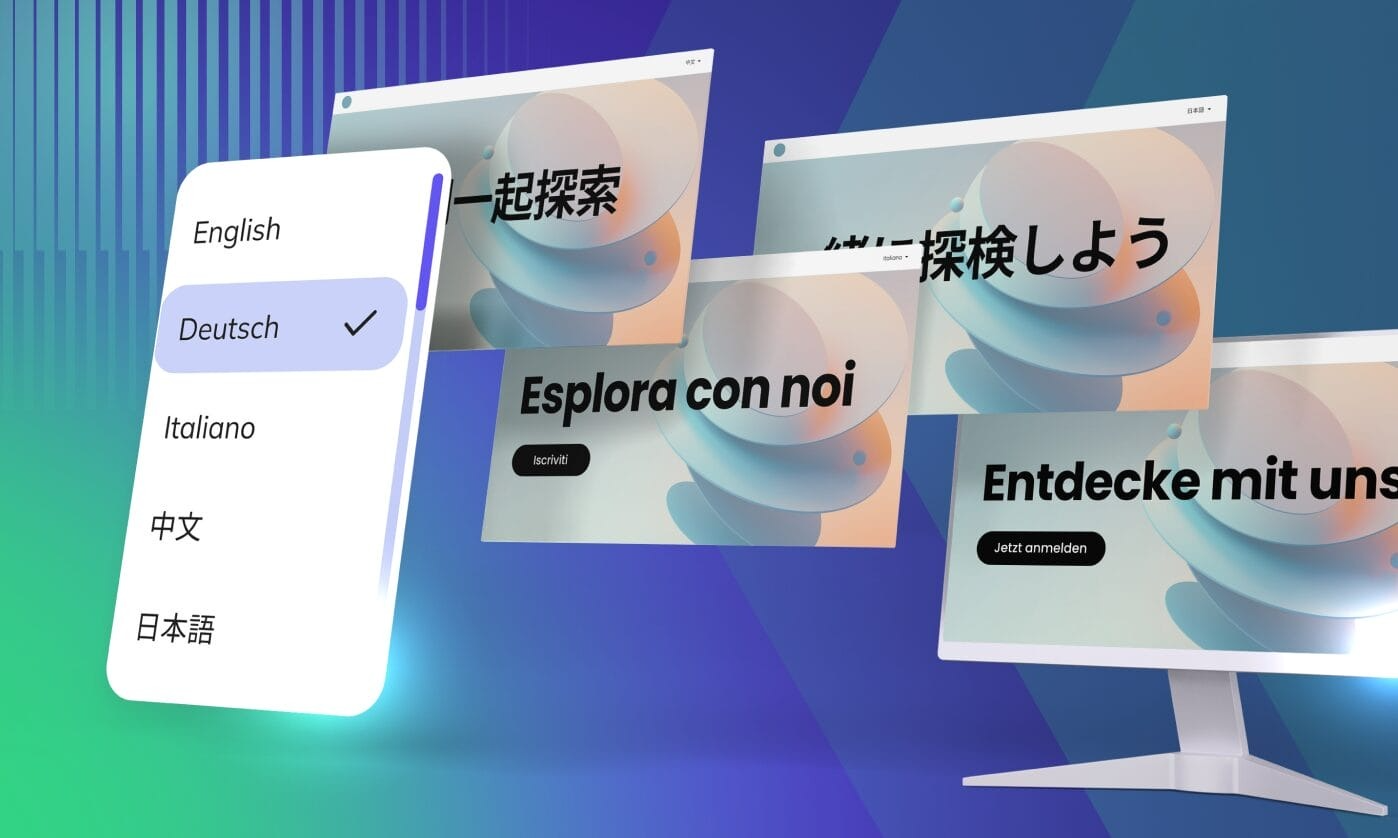
    Final Thoughts on Website Localisation

    Looking back, this project taught us something surprisingly simple. The biggest productivity gains didn’t come from translating content faster. They came from removing unnecessary steps from the entire workflow.

    By combining WPML’s multilingual capabilities with DeepL’s translation quality and adding automation where it genuinely helps, we’ve created a solution that supports the entire website localisation process, not just translation.

    As a WordPress agency UK, we believe the best software comes from solving real problems.

    This plugin wasn’t created because we wanted another product in our portfolio. It was created because we were tired of solving the same problem manually.

    If you’re managing multilingual websites, expanding into international markets, or looking to streamline your multilingual website development workflow, investing in the right tools and processes can save hundreds of hours while delivering a better experience for both your team and your customers.

    And sometimes, the best software isn’t the one with the longest feature list. It’s the one that quietly removes hours of repetitive work every single week.

  • How We Built a Custom Mega Menu in Elementor Without Compromising Performance

    How We Built a Custom Mega Menu in Elementor Without Compromising Performance

    Mega menus are a powerful way to organise complex navigation, especially for websites with multiple services, categories or content layers. However, building one in Elementor is not always straightforward, particularly without relying on heavy third-party add-ons.

    In one of our recent projects, we were tasked with creating a fully custom mega menu that was visually clean, easy to manage and responsive across devices. This blog walks through the challenges we faced and how we solved them using Elementor in a practical and efficient way.

    Understanding the Requirement

    The client needed a mega menu that could:

    • Display multiple columns of links and content
    • Include icons, images and highlighted sections
    • Be fully editable from the backend
    • Work seamlessly on both desktop and mobile

    At the same time, performance and simplicity were key priorities.

    The Challenge with Default Elementor Options

    Elementor does not offer a true mega menu out of the box unless you use its advanced features or external plugins. Many third-party solutions tend to:

    • Add unnecessary bloat
    • Affect page speed
    • Complicate future updates

    We wanted to avoid these issues and keep the solution lightweight.

    Our Approach to Building the Mega Menu

    Using Elementor Templates

    We created the mega menu layout as a reusable Elementor template. This allowed us to:

    • Design complex multi-column structures
    • Add images, headings and call-to-action sections
    • Maintain consistency across the website
    Integrating with Navigation

    Instead of relying on plugins, we linked the template to navigation items using custom classes and simple scripts. This ensured:

    • Smooth hover interactions
    • Clean separation between menu logic and design
    • Better control over behaviour
    Keeping It Lightweight

    We avoided unnecessary scripts and kept styling minimal. By doing this, we ensured the mega menu did not negatively impact performance.

    Mobile Responsiveness

    Mega menus often break down on mobile devices if not handled properly.

    How we handled it

    We designed a separate mobile-friendly structure by:

    • Converting mega menu sections into stacked layouts
    • Using collapsible sections for better usability
    • Ensuring touch-friendly interactions

    This created a consistent experience across all screen sizes.

    Client Editing Experience

    A key part of the solution was making sure the client could update the menu easily.

    We achieved this by:

    • Structuring the template clearly
    • Using reusable sections
    • Providing simple instructions for updates

    This meant the client could manage the menu without developer support.

    Outcome

    The final result was a fully customised mega menu that:

    • Looked clean and professional
    • Performed efficiently
    • Worked across all devices
    • Was easy to maintain and update

    Conclusion

    Building a mega menu in Elementor does not have to rely on heavy plugins or complex setups. With a thoughtful approach using templates and lightweight integration, it is possible to create a scalable and high-performing navigation system.

    This project showed that focusing on simplicity, structure and usability leads to a better long-term solution for both users and clients.

  • Real Challenges Faced While Building Multilingual WordPress Sites

    Real Challenges Faced While Building Multilingual WordPress Sites

    Every multilingual WordPress project brings its own challenges, especially when combining custom development, page builders and multiple languages such as English and Arabic. While tools like WPML make the process easier, real issues often arise during implementation rather than setup.

    In this blog, we share practical challenges we faced across multiple client projects and how we solved them to create smooth, user-friendly multilingual websites.

    Managing Content Across Multiple Languages

    One of the biggest challenges was managing content updates across languages. Clients would update English content but forget to update the Arabic version, leading to inconsistencies.

    How we solved it

    We created a structured workflow using WPML where:

    • Content updates triggered translation updates
    • Editors were guided to update both languages simultaneously
    • Translation status was clearly visible

    This made content management far more organised and reduced errors.

    Builder Content Not Syncing Properly

    When using page builders, some content elements did not sync properly between languages. Certain sections would either duplicate incorrectly or fail to appear in the translated version.

    How we solved it

    We ensured full compatibility between the builder and WPML by:

    • Using WPML-supported builders only
    • Translating content at the module level instead of duplicating entire pages
    • Testing reusable templates across languages

    This resulted in a much smoother translation experience within the builder environment.

    AI Translation Quality vs Human Accuracy

    In some projects, clients preferred faster delivery using AI-generated translations. However, the initial output sometimes lacked context or proper tone.

    How we solved it

    We adopted a hybrid approach:

    • AI was used to generate initial translations quickly
    • Our team reviewed and refined the content manually
    • Industry-specific terminology was adjusted carefully

    This allowed us to balance speed with quality and deliver accurate results efficiently.

    Navigation and Menu Translation Issues

    Menus and navigation elements often caused confusion, especially when switching between languages. Some menu items were not translated, while others linked incorrectly.

    How we solved it

    We used WPML’s menu synchronisation tools to:

    • Create fully separate menus for each language
    • Ensure correct linking between translated pages
    • Maintain consistency in navigation structure

    This improved usability and created a seamless browsing experience.

    Maintaining Design Consistency Across Languages

    Design consistency can be difficult to maintain when switching between languages with different text lengths and reading directions.

    How we solved it

    We approached design with flexibility by:

    This ensured both English and Arabic versions looked equally polished.

    • Allowing space for text expansion
    • Using adaptable layout structures
    • Testing both languages side by side

    Conclusion

    Working on multilingual WordPress websites taught us that most issues are not caused by the tools themselves, but by how they are implemented. With the right workflow, proper use of WPML, and a balanced approach to translation, it is possible to create websites that are both visually consistent and easy to manage.

    A well-built multilingual site should feel natural in every language, not like a translated version of the original. That is exactly what we aim to achieve in every project.

  • Common WordPress Multilingual Issues and How We Solved Them in Our Projects

    Common WordPress Multilingual Issues and How We Solved Them in Our Projects

    Building a multilingual WordPress website sounds straightforward until you start dealing with real-world complexity. From broken layouts to missing translations and SEO inconsistencies, these challenges often appear once the site begins to scale.

    In several of our recent projects, we encountered recurring issues that affected performance, usability and content accuracy across languages. This blog highlights the most common problems and explains how we addressed them in a practical, reliable way.

    Inconsistent Translations Across Pages

    One of the first issues we noticed was inconsistency in translations. Some pages were fully translated, while others had missing sections, mixed languages or outdated content.

    How we solved it

    We standardised the translation workflow by using WPML’s Translation Management and ensuring every page followed a structured process. Instead of translating content randomly, we created a clear system where:

    • Every English page had a corresponding Arabic version
    • All fields, including custom fields, were mapped properly
    • Updates were synced across both languages

    This immediately improved consistency and reduced the risk of incomplete pages going live.

    ACF Fields Not Translating Properly

    For projects built with ACF, a common problem was that custom fields were not appearing correctly in the translated version. In some cases, content would duplicate incorrectly or not display at all.

    How we solved it

    We configured ACF fields to work seamlessly with WPML by:

    • Assigning correct translation preferences to each field
    • Using field groups designed specifically for multilingual support
    • Testing flexible content layouts across languages

    Once configured correctly, translations became predictable and much easier to manage.

    Layout Breaking in Arabic (RTL Issues)

    Arabic websites require right-to-left formatting, which can cause layout issues, especially with custom designs or page builders. Elements such as spacing, alignment and icons often break or appear misaligned.

    How we solved it

    We implemented a dedicated RTL optimisation phase where we:

    • Adjusted CSS specifically for RTL layouts
    • Reversed directional elements such as icons and sliders
    • Fine-tuned spacing and typography

    This ensured that the Arabic version felt native rather than a mirrored version of English.

    SEO Problems Across Languages

    Another recurring issue was poor SEO structure in multilingual setups. Duplicate meta tags, incorrect hreflang attributes and inconsistent URLs were affecting search visibility.

    How we solved it

    We aligned SEO settings across languages by:

    • Setting unique meta titles and descriptions for each language
    • Configuring proper hreflang tags
    • Ensuring clean, language-specific URLs

    This helped improve indexing and ensured both language versions performed well in search results.

    Slow Performance Due to Multilingual Setup

    Adding multiple languages often increased page load times, especially when combined with heavy plugins or poorly optimised media.

    How we solved it

    We focused on performance optimisation by:

    • Reducing unnecessary plugins
    • Implementing caching and CDN support
    • Optimising images and scripts

    As a result, both language versions maintained fast and stable performance.

    Conclusion

    Multilingual WordPress websites come with their own set of challenges, but most issues can be resolved with the right structure and workflow. By focusing on proper translation management, ACF configuration, RTL adjustments and SEO alignment, we were able to deliver stable and high-performing bilingual platforms.

    The key takeaway is simple: a multilingual website is not just about translation, it is about building a system that keeps everything consistent, scalable and easy to manage.

  • Thrive Theme Builder A Conversion Focused WordPress Solution for Modern Businesses

    Thrive Theme Builder A Conversion Focused WordPress Solution for Modern Businesses

    Building a high performing website today requires more than good design. It demands speed, flexibility, and a strong focus on conversions. Thrive Theme Builder has emerged as a powerful solution for businesses that want full control over their WordPress website while keeping marketing and sales at the core of their strategy.

    Developed by Thrive Themes, Thrive Theme Builder is not just a page builder but a complete theme framework that allows you to design every part of your website visually. At Smart Web Agency, we have implemented Thrive Theme Builder for multiple conversion driven projects, including easiestswing.com, where it is used to sell online courses effectively.

    What Is Thrive Theme Builder

    Thrive Theme Builder is a WordPress theme framework that gives you complete control over your website layout. Unlike traditional themes, it allows you to visually design headers, footers, blog templates, course layouts, and WooCommerce pages without touching code.

    It works alongside Thrive Architect, which handles page level content, making the combination ideal for businesses focused on lead generation, content marketing, and sales funnels.

    Key Features of Thrive Theme Builder

    Thrive Theme Builder is built with marketers in mind. Its features are focused on improving user engagement and increasing conversions.

    It allows you to create fully custom templates for posts, pages, and archives. Dynamic content features make it easy to personalise layouts based on categories, authors, or post types. Performance is prioritised, keeping websites fast and lightweight. The builder integrates seamlessly with other Thrive tools, creating a complete ecosystem for online businesses.

    Using Thrive Theme Builder with WooCommerce

    Thrive Theme Builder works well with WooCommerce, especially for businesses that prioritise conversion optimisation over complex catalogue management.

    You can visually customise WooCommerce templates including product pages, shop pages, cart layouts, and checkout styling. This makes it possible to align the entire ecommerce journey with your brand and marketing goals. For agencies offering WooCommerce Development in London: Best Practices for High Converting Stores, Thrive Theme Builder provides strong foundations for clean design, fast loading pages, and persuasive layouts.

    Requirements to Use Thrive Theme Builder with WooCommerce

    To use Thrive Theme Builder effectively with WooCommerce, certain requirements must be met.

    You must use Thrive Theme Builder as your active WordPress theme since it cannot run on top of another theme. WooCommerce must be installed and configured before customising product templates.

    Thrive Architect is required for advanced page level design. A valid Thrive Suite subscription is also necessary to access all features and updates. Proper hosting is recommended, ideally optimised for WordPress and WooCommerce to ensure performance remains strong.

    Restrictions and Limitations

    While Thrive Theme Builder is powerful, it does come with some limitations.

    It does not support third party page builder addons in the same way Elementor does. Advanced WooCommerce features such as complex product filtering or highly customised checkout logic may require additional custom development. It is not suitable for users who want to switch themes frequently, as the entire site structure is built within the Thrive framework. Thrive tools are also exclusive to WordPress and cannot be used on other platforms.

    Best Use Cases for Thrive Theme Builder

    Thrive Theme Builder performs best for conversion driven websites.

    It is ideal for selling digital products, online courses, memberships, and coaching services. Content focused businesses such as educators, consultants, and marketers benefit greatly from its streamlined design system. It is also effective for small to medium sized ecommerce stores where branding, speed, and conversion optimisation matter more than large scale inventory management.

    Real World Example Easier Course Selling with Thrive

    At Smart Web Agency, we used Thrive Theme Builder on easiestswing.com to create a focused learning platform.

    Courses are delivered using Thrive Apprentice, providing structured lesson delivery and access control. Marketing campaigns are powered by Thrive Ultimatum, enabling limited time offers and evergreen countdowns. This combination has proven highly effective for increasing course enrolments while maintaining a smooth user experience.

    Why Smart Web Agency Recommends Thrive Theme Builder

    We recommend Thrive Theme Builder for clients who want results driven websites. Its tight integration with conversion tools, ease of maintenance, and strong performance make it an excellent choice for modern WordPress businesses.

    When paired with thoughtful WooCommerce implementation and best practices, it supports the creation of high converting stores without unnecessary complexity.

    Conclusion

    Thrive Theme Builder is more than a design tool. It is a strategic platform for businesses focused on growth, conversions, and long term scalability. Whether you are selling courses, digital products, or running a streamlined WooCommerce store, Thrive Theme Builder offers the control and flexibility needed to succeed in competitive markets.

  • Top WordPress Security Plugins in 2026 

    Top WordPress Security Plugins in 2026 

    Choosing a WordPress security plugin in 2026 is less about which plugin offers the most features and more about which solution best suits your hosting environment and risk profile. Some plugins operate directly within WordPress and provide detailed inspection, while others work at the network level and block attacks before they ever reach your website.

    This guide explains features, pricing, performance considerations, and real-world suitability, helping you choose the right plugin for your specific needs.

    1. Wordfence

    Wordfence is one of the most widely trusted WordPress security plugins and is known for its detailed, application-level protection. It operates entirely within WordPress, allowing it to closely inspect files, plugins, login activity and incoming traffic. This makes it particularly effective at detecting infections and suspicious behaviour.

    However, because Wordfence relies on server resources, its malware scans can place noticeable load on shared hosting environments. On VPS or dedicated servers, this impact is usually minimal.

    Best suited for:
    Business websites, content-heavy blogs and high-traffic platforms running on VPS or dedicated hosting.

    Price

    • Free version available
    • Premium: £119/year (single site)

    Free features

    • Malware scanning
    • File integrity monitoring
    • Login security and brute-force protection
    • Firewall with delayed rule updates

    Paid features

    • Real-time firewall rule updates
    • Real-time malware signature updates
    • Country blocking
    • IP reputation blocking
    • Priority support

    2. Sucuri

    Sucuri uses a cloud-based security model that filters traffic before it reaches your WordPress installation. This significantly reduces server load and provides strong protection against DDoS attacks, bot traffic and large-scale threats. Because it operates at the DNS and network level, attacks are blocked even if WordPress itself is vulnerable.

    Initial setup requires DNS changes, and user experiences with support vary depending on plan level and complexity of the issue.

    Best suited for:
    eCommerce sites, enterprise platforms, high-risk websites and shared hosting environments.

    Price

    • Free plugin (limited functionality)
    • Paid plans: £199–£499/year

    Free features

    • Malware scanning
    • File integrity monitoring
    • Security activity auditing

    Paid features

    • Cloud Web Application Firewall (WAF)
    • DDoS protection
    • Malware removal
    • Blacklist removal
    • CDN-based performance optimisation

    3. Solid Security (formerly iThemes Security)

    Solid Security focuses on preventing common WordPress attacks through hardening, login protection and user security controls. It is straightforward to configure and does not rely heavily on continuous scanning, making it lighter on server resources than some alternatives.

    Best suited for:
    Small to medium-sized business websites that want strong security without complex configuration or heavy performance impact.

    Price

    • Free version available
    • Pro: £99/year

    Free features

    • Brute-force attack prevention
    • Login security improvements
    • Basic WordPress hardening
    • File change detection

    Paid features

    • Two-factor authentication (2FA)
    • User activity logging
    • Password expiry policies
    • Scheduled malware scans
    • Role-based security settings

    4. All-In-One WP Security

    All-In-One WP Security is a completely free plugin designed to strengthen WordPress fundamentals. It uses .htaccess-based firewall rules and configuration hardening. While this makes it lightweight and easy to run, it is less effective than true application-level or cloud-based firewalls.

    Best suited for:
    Personal blogs, low-risk websites and beginners.

    Price

    • Free (no paid version)

    Free features

    • Login lockdown and CAPTCHA
    • Firewall rules from basic to advanced
    • Database and file security
    • User account monitoring
    • Security strength grading

    Paid features

    • Not available

    5. MalCare

    MalCare is built for fast malware detection and reliable cleanup with minimal impact on site performance. Scanning is performed on external servers, ensuring that even low-resource hosting environments remain responsive. Its malware removal service is consistently well regarded.

    Best suited for:
    Hacked websites, agencies managing multiple sites and users who require guaranteed malware removal.

    Price

    • Free malware scanning
    • Premium: £149/year

    Free features

    • Malware detection
    • Vulnerability scanning
    • Basic site health checks

    Paid features

    • One-click malware removal
    • Real-time firewall
    • Bot protection
    • Automatic cleanup
    • Performance-safe scanning

    6. Jetpack

    Jetpack Security combines basic protection with backups and uptime monitoring. While its malware scanner can detect issues, it does not clean infections directly; instead, users are expected to restore from backups.

    Best suited for:
    Non-technical users who want security, monitoring and backups in one service.

    Price

    • Free version available
    • Security plan: £119/year

    Free features

    • Brute-force attack protection
    • Downtime monitoring
    • Limited activity logging

    Paid features

    • Automated backups
    • Malware scanning and recovery via restore
    • One-click site restores
    • Spam protection
    • Priority support

    7. Defender

    Defender provides lightweight WordPress security with a modern, uncluttered dashboard. It focuses on login protection, scanning and essential hardening without overwhelming the user.

    Best suited for:
    Small business websites that want simple, visually clear security controls.

    Price

    • Free version available
    • Pro: £84/year

    Free features

    • Malware scanning
    • Login protection
    • IP blocking
    • Basic security hardening

    Paid features

    • Two-factor authentication
    • Audit logs
    • Blacklist monitoring
    • Scheduled scans

    8. Security Ninja

    Security Ninja is a diagnostic-focused plugin designed to identify vulnerabilities rather than automatically resolve them. It produces detailed reports that allow experienced users to make manual fixes.

    Best suited for:
    Developers, security auditors and technically experienced administrators.

    Price

    • Free version available
    • Pro: £49/year

    Free features

    • Basic security tests
    • Vulnerability detection
    • Core WordPress checks

    Paid features

    • Over 50 advanced security tests
    • Automated checks
    • Fix recommendations
    • WP-CLI integration

    9. WP 2FA

    WP 2FA focuses exclusively on strengthening WordPress login security using two-factor authentication. It is intended to complement, not replace, a firewall or malware protection plugin.

    Best suited for:
    Admin-heavy websites, teams and compliance-focused environments.

    Price

    • Free version available
    • Premium: £59/year

    Free features

    • Two-factor authentication
    • Backup authentication methods

    Paid features

    • Role-based enforcement
    • User compliance policies
    • Login grace periods
    • Advanced configuration options

    10. Anti-Malware Security

    Anti-Malware Security focuses on detecting injected code, backdoors and suspicious database entries. It works best as an additional layer alongside another security plugin rather than as a standalone solution.

    Best suited for:
    Websites requiring additional malware inspection alongside an existing firewall.

    Price

    • Free version available
    • Premium: £29–£99/year

    Free features

    • Malware and backdoor scanning
    • Core WordPress file protection
    • Database scanning
    • Manual cleanup guidance

    Paid features

    • Automatic malware removal
    • Scheduled scans
    • Advanced threat definitions
    • Firewall hardening
    • Priority support

    Final Recommendation

    For effective WordPress security in 2026, the most reliable approach is layered protection. A cloud-based firewall can block malicious traffic before it reaches your server, a local scanner can monitor file changes, and two-factor authentication can protect user accounts.

    Selecting a plugin that matches your hosting environment and risk level will always provide better results than simply choosing the most feature-rich option.

  • Smart Instalments Manager for WooCommerce

    Smart Instalments Manager for WooCommerce

    Smart Web Agency is pleased to announce the public release of its new WordPress plugin Smart Instalments Manager for WooCommerce. The plugin is now available for download from the official WordPress plugin directory and is designed to help store owners manage subscription-based instalment payments in a clearer and more structured way.

    Plugin Compatibility and Requirements

    Smart Instalments Manager for WooCommerce is fully compatible with WooCommerce and WooCommerce Subscriptions. Both plugins must be installed and activated on the website for Smart Instalments Manager for WooCommerce to function correctly.

    Once activated, the plugin extends the default WooCommerce Subscriptions workflow without altering the core behaviour of either WooCommerce or WooCommerce Subscriptions.

    New Order Status for Better Clarity

    On installation, Smart Instalments Manager for WooCommerce registers a new WooCommerce order status called Balance Payable. This order status is used for renewal instalment orders where no physical fulfilment is required.

    For developers or advanced users, the order status label can be changed using the filter below.

    function wcsim_custom_status_label()
    {
           return ‘Waiting Approval’;
    }
    add_filter( ‘wcsim_custom_order_status_label’, ‘wcsim_custom_status_label’ );

    Additional Fields for Subscription Products

    The plugin adds two new custom fields to subscription products. These fields are available for both Simple Subscription and Variable Subscription product types.

    The first field is Instalments Total, which defines the total number of instalments for the product.

    The second field is Product Full Price, which represents the complete price of the product being sold on instalments.

    How Instalment Pricing Works

    To use the plugin effectively, the store owner sets the instalment amount as the subscription price. The billing frequency is then configured using WooCommerce Subscriptions, such as monthly or every two months, depending on how often the customer should be charged.

    Order Relationships in the Dashboard

    A new column called Order Info appears on the WooCommerce order list screen. This column clearly shows whether an order is a parent order or an instalment order and also displays the instalment number.

    When the first order of a subscription is created, it is treated as the parent order. If no trial period is set, this order is marked as Instalment 1 and its status remains Processing. This makes it easy for store owners to fulfil the order and ship the product.

    All subsequent renewal orders are treated as instalment orders. These renewal orders are automatically assigned the Balance Payable status or any custom status defined by the store owner.

    Intelligent Handling of Instalment Cycles

    If a product is configured with four instalments, the plugin increments the instalment count on each renewal order. When the final instalment is completed, the instalment count reaches the defined total.

    On the next renewal cycle, the plugin resets the instalment count and starts again from Instalment 1. This renewal is treated as a new parent relationship and the order status is set to Processing.

    Preventing Double Shipping and Reducing Confusion

    Smart Instalments Manager for WooCommerce helps prevent double shipping. Only parent orders are marked for fulfilment, while renewal instalment orders remain payment only orders.

    Download the Plugin

    You can download Smart Instalments Manager for WooCommerce from the official WordPress plugin directory.

  • 10 Practical Ways to Remove Malware from a WordPress Website (2026 Guide)

    10 Practical Ways to Remove Malware from a WordPress Website (2026 Guide)

    Malware infections continue to threaten WordPress websites in 2026, particularly those using outdated plugins, nulled themes, or weak security configurations. If your website is redirecting users, showing pop-ups, slowing down, or behaving abnormally, a malware infection is highly likely.

    This comprehensive guide outlines 10 practical, professional-level steps to fully remove malware from your WordPress website.

    1. Replace WordPress Core Files with Fresh Copies

    Hackers frequently modify WordPress core files, injecting malware deep within the system.

    Signature Example:

    • Delete everything except:
    /wp-content/
    wp-config.php
    • Download the latest clean WordPress package from wordpress.org
    • Replace your existing files with fresh copies

    This removes:

    • Tampered wp-admin and wp-includes files
    • Obfuscated PHP shells

    2. Remove Suspicious Plugins and Themes

    Infected plugins and themes (especially nulled ones) are the leading cause of WordPress hacks in the UK.

    What to Do:

    • Remove plugins/themes you do not recognise
    • Delete all deactivated plugins
    • Reinstall trusted plugins from WP.org or official developers

    Common suspicious folders include:

    /wp-content/plugins/wp-v2/
    
    
    /wp-content/plugins/adminer/
    
    
    /wp-content/themes/twentyfifteen-old/

    If it looks unusual → delete it immediately.

    3. Scan Files for Malware Signatures

    Hackers often hide malware using encoded or obfuscated PHP.

    Recommended Tools:

    • Wordfence Scanner
    • Sucuri Malware Scanner
    • WPScan (CLI)
    • Maldet + ClamAV (server-level)

    High-risk PHP functions include:

    eval(
    
    
    base64_decode(
    
    
    gzuncompress(
    
    
    preg_replace(“/.*/e”
    
    
    shell_exec(
    
    
    system(

    Delete or replace any file containing these patterns unless verified as legitimate.

    4. Clean the Database of Malware

    Malware frequently spreads to the database through:

    • Injected JavaScript
    • Spam content
    • Hidden admin accounts
    • Corrupted cron jobs

    Run the following queries:

    SELECT * FROM wp_posts WHERE post_content LIKE ‘%<script%’;
    
    
    SELECT * FROM wp_options WHERE option_value LIKE ‘%base64%’;
    
    
    SELECT * FROM wp_users;

    Remove:

    • Suspicious user accounts
    • Malicious scripts
    • Infected cron entries

    5. Remove Malware from the Uploads Folder

    The uploads directory is one of the most commonly exploited locations.

    Check for:

    Any .php files inside:

    /wp-content/uploads/

    There should never be PHP files in this folder.
    Delete files such as:

    1index.php
    
    
    shell.php
    
    
    payload.php
    
    
    a.php

    6. Remove Backdoors (Most Critical Step)

    A backdoor allows attackers to regain access even after cleaning the site.

    Common locations:

    • wp-config.php
    • functions.php
    • Old/unused theme folders
    • Hidden subdirectories inside /uploads/

    Look for code snippets like:

    if(isset($_REQUEST[‘cmd’])) { system($_REQUEST[‘cmd’]); }

    If any backdoor remains, reinfection is guaranteed.

    7. Check the .htaccess File for Redirect Malware

    Redirect infections are one of the most visible signs of a hacked site.

    Example malicious rule:

    RewriteRule ^.*$ http://malicious-site.com [L]

    Fix:

    • Remove suspicious rules
    • Restore default WordPress rules
    # BEGIN WordPress
    
    RewriteEngine On
    
    RewriteBase /
    
    RewriteRule ^index\.php$ – [L]
    
    RewriteCond %{REQUEST_FILENAME} !-f
    
    RewriteCond %{REQUEST_FILENAME} !-d
    
    RewriteRule . /index.php [L]
    
    # END WordPress

    If any backdoor remains, reinfection is guaranteed.

    8. Use a Professional Malware Removal Tool

    If you prefer automated and reliable removal, use trusted tools.

    Best Tools in 2026:

    • Wordfence Premium
    • Sucuri Security Platform
    • MalCare Pro

    These solutions:

    • Detect infected files
    • Remove malware automatically
    • Provide firewalls and protection
    • Harden your site security

    9. Reinstall Fresh Copies of Themes

    Themes, especially outdated ones are frequent targets for attackers.

    Steps:

    • Delete the entire theme folder
    • Download a clean version
    • Upload it to your website

    Pay attention to:

    • functions.php
    • header.php
    • footer.php

    These are the most commonly modified files.

    10. Clean Your Hosting Account or Server

    If the infection repeatedly returns, the hosting account may also be compromised.

    Essential actions:

    • Update PHP to 8.2 or 8.3
    • Change cPanel / FTP / SSH passwords
    • Run a server scan:
    clamscan -r /home/username
    • Remove unknown cron jobs
    • Reset permissions:
    find . -type d -exec chmod 755 {} \;
    
    find . -type f -exec chmod 644 {} \;

    This ensures malware cannot execute from outside WordPress.

    BONUS: Harden Your Website After Cleaning

    Strengthen your WordPress security to minimise the risk of future attacks.

    Essential security practices:

    • Enable Cloudflare WAF
    • Install Wordfence Firewall
    • Disable theme/plugin file editing:
    define(‘DISALLOW_FILE_EDIT’, true);
    • Limit login attempts
    • Activate Two-Factor Authentication (2FA)
    • Keep everything updated — WordPress, plugins and themes

    Need Professional Assistance?

    If you’d like expert help with removing malware, hardening security, performing backups, updates, monitoring and full protection, we offer complete WordPress maintenance packages.

    Visit: WordPress Maintenance

  • Top 10 WordPress Plugins for Building a Complete Website in 2025

    Top 10 WordPress Plugins for Building a Complete Website in 2025

    Creating a professional, fast and secure WordPress website in 2025 has never been easier. By combining a few powerful and trusted plugins, you can design engaging pages, manage online sales, improve your search rankings, monitor traffic and protect your website from threats.

    Here are the top ten WordPress plugins to help you build a complete website from design to performance.

    1. Elementor – Design and Page Building:

    Elementor remains the most popular visual page builder for WordPress. It allows you to design every part of your website using a simple drag-and-drop interface. Whether you are building a home page, landing page or shop layout, Elementor gives full creative control and works seamlessly with most themes and WooCommerce.

    Perfect for: Designing pages and layouts without writing code.

    Case Studies:

    • Simply Naturals: Built fully custom Elementor-based layouts including product pages, landing pages and informational sections. Ensured a clean, modern design while maintaining quick editing capability for the client.
      Case Study: Simply Naturals
    • Aquasure Spa Care Solutions: Designed product benefits, tutorials pages, product information layouts and landing pages using Elementor, improving conversion flow and maintaining brand consistency across the site.
      Case Study: Aquasure Spa Care Solutions
    • Clover Cars: Used Elementor to refresh key site pages, improving layout structure for better vehicle listing visibility and creating a more user-friendly browsing experience.
      Case Study:
      Clover Cars

    2. WooCommerce – E-commerce Made Easy:

    WooCommerce transforms your WordPress website into a fully functional online store. It supports product management, secure payments, tax calculations and shipping options. With its wide range of extensions, WooCommerce can power almost any kind of e-commerce business.

    Perfect for: Online stores, digital downloads and physical product sales.

    Case Studies:

    • The Hot Tub Superstore: Customised WooCommerce product pages and category pages extensively. Added advanced finance calculator functionality on the product detail page to help customers understand payment breakdowns, improving conversions.
      Case Study:
      The Hot Tub Superstore
    • Aquasure Spa Care Solutions: Implemented WooCommerce product structures, optimised product page layouts and ensured smooth checkout flow tailored to their spa and chemical product offerings.
      Case Study: Aquasure Spa Care Solutions
    • Master Spas UAE: Implemented WooCommerce product structures, optimised product page layouts, and customised both single product and archive pages as per the design shared by the client.
      Case Study: Master Spas UAE
    • Simply Naturals: Enhanced WooCommerce product detail pages, improved category structures and refined the customer journey to support their supplements and health product catalog.
      Case Study: Simply Naturals

    3. WooCommerce Subscriptions – Recurring Payments:

    WooCommerce Subscriptions enables you to sell products or services on a recurring basis. It automates renewals and supports multiple billing schedules, making it ideal for membership websites and subscription services.

    Perfect for: Recurring revenue models, memberships and service-based websites.

    Case Studies:

    • The Hot Tub Superstore: Integrated subscription functionality for recurring spa-care consumable items, enabling the business to generate predictable, recurring revenue.
      Case Study:
      The Hot Tub Superstore
    • Aquasure Spa Care Solutions: Added recurring billing options for spa maintenance products, providing greater convenience for repeat buyers.
      Case Study: Aquasure Spa Care Solutions
    • Simply Naturals: Implemented subscription-based supplement orders for customers who prefer monthly replenishment.
      Case Study: Simply Naturals

    4. WPForms – Form Builder:

    WPForms is an intuitive drag-and-drop form builder that lets you create contact, order, and registration forms with ease. It offers advanced features such as multi-page forms, file uploads and conditional logic while integrating seamlessly with marketing and payment platforms.

    Perfect for: Custom forms, registrations and enquiries.

    Case Studies:

    • Simply Naturals: Built custom contact and enquiry forms with conditional fields to streamline customer support and product queries.
      Case Study: Simply Naturals

    5. Yoast SEO – Search Engine Optimisation:

    Yoast SEO helps you improve your website’s search visibility by guiding you through on-page optimisation. It manages meta titles, descriptions, schema markup and readability, ensuring that your content meets the latest SEO best practices in 2025.

    Perfect for: Increasing organic traffic and improving Google rankings.

    Case Studies:

    • The Hot Tub Superstore: Implemented on-page SEO improvements, optimising product descriptions, meta tags and category structures.
      Case Study:
      The Hot Tub Superstore
    • Aquasure Spa Care Solutions: Configured SEO settings, improved content structure and strengthened keyword optimisation for spa products.
      Case Study: Aquasure Spa Care Solutions
    • Master Spas UAE: Enhanced SEO across product pages and regional landing pages to improve local search visibility.
      Case Study: Master Spas UAE
    • Simply Naturals: Updated metas, schema and technical SEO to boost organic traffic for supplement products.
      Case Study: Simply Naturals
    • Clover Cars: Optimised vehicle listing pages and buyer guides for better organic reach.
      Case Study:
      Clover Cars

    6. WP Rocket – Website Performance and Speed

    WP Rocket is one of the most effective caching and performance optimisation plugins for WordPress. It minimises load times, improves Core Web Vitals and enhances SEO rankings.

    Perfect for: Speed optimisation and better user experience.

    Case Studies:

    • Simply Naturals: Configured caching, lazy loading and database optimisations, resulting in improved page load times.
      Case Study: Simply Naturals
    • The Hot Tub Superstore: Applied advanced performance optimisation to support a large WooCommerce catalog and reduce load times.
      Case Study:
      The Hot Tub Superstore

    7. Wordfence Security – Website Protection:

    Wordfence Security provides comprehensive protection with a web application firewall, malware scanner and real-time threat defence. It monitors logins, detects vulnerabilities and keeps your WordPress site safe.

    Perfect for: Protecting against hacks, malware and brute-force attacks.

    Case Studies:

    • Simply Naturals: Configured firewall and login security rules to protect customer data and prevent brute-force attacks.
      Case Study: Simply Naturals
    • Clover Cars: Strengthened security settings and ongoing threat monitoring to maintain a secure automotive platform.
      Case Study:
      Clover Cars

    8. All-in-One WP Migration – Backup and Transfer:

    All-in-One WP Migration allows you to export your entire website, including the database, media and plugins, and import it effortlessly on another host. It’s a must-have for backups and migrations.

    Perfect for: Backing up, cloning or moving your website securely.

    Case Studies:

    • The Hot Tub Superstore: Used for secure backup setup and version migration during major updates.
      Case Study:
      The Hot Tub Superstore
    • Aquasure Spa Care Solutions: Migrated the site seamlessly during redesign and hosting improvements.
      Case Study: Aquasure Spa Care Solutions
    • Master Spas UAE: Handled full site migration during performance optimisation and structural upgrades.
      Case Study: Master Spas UAE
    • Simply Naturals: Managed scheduled backups and safe transfers during development phases.
      Case Study: Simply Naturals

    9. MonsterInsights – Analytics and Tracking:

    MonsterInsights integrates Google Analytics directly into your WordPress dashboard, providing insights into traffic, user behaviour and conversions. It includes e-commerce tracking for WooCommerce.

    Perfect for: Understanding audience engagement and tracking performance.

    Case Studies:

    • Simply Naturals: Configured tracking to monitor customer journeys and improve conversions.
      Case Study: Simply Naturals

    10. Redirection – Manage URL Changes:

    Redirection helps you handle 301 redirects, fix broken links and monitor 404 errors. Keeping redirects organised improves both user experience and SEO.

    Perfect for: Managing site changes and preserving search rankings.

    Case Studies:

    • The Hot Tub Superstore: Set up redirect rules during site restructuring to prevent ranking loss and improve navigation.
      Case Study:
      The Hot Tub Superstore
    • Master Spas UAE: Managed URL updates and redirects after redesign and structural improvements.
      Case Study: Master Spas UAE
    • Simply Naturals: Created redirect rules for newly organised product categories and pages.
      Case Study: Simply Naturals

    Conclusion:

    With these ten plugins, you can build a complete, fully optimised WordPress website in 2025 — from visual design and online sales to SEO, speed, analytics and security.

    The key is balance: install only the plugins that meet your site’s goals, keep them updated and test their compatibility regularly. Following these steps ensures your WordPress site remains secure, fast and ready to grow in 2025.

  • How to Sell WooCommerce Subscriptions on Instalments without Expensive Plugins

    How to Sell WooCommerce Subscriptions on Instalments without Expensive Plugins

    Many eCommerce store owners struggle to offer subscription products with instalment payments in WooCommerce. We faced the same issue while building a site that needed customers to pay their subscription cost in manageable monthly instalments.

    Like many developers, we initially turned to existing plugins such as SUMO Payment Plans. However, it caused serious conflicts, including duplicate orders and renewal mismatches. This lack of control made me realise that a custom-built solution would be more reliable and easier to maintain.

    So, we built my own lightweight plugin: WC Subscription Instalments Control

    This plugin provides complete control over WooCommerce subscription payments made in instalments—without added complexity or costly licences..

    The Problem

    By default, WooCommerce Subscriptions allows users to create recurring payments for products. However, if you want to break a total cost into multiple monthly instalments while keeping control over shipping and renewal orders, it gets tricky.

    In our case, the challenge was:

    • Tracking how many instalments were completed
    • Ensuring only the first instalment triggered a shipping order
    • Marking the following payments as Balance Payable (no shipping required)
    • Displaying clear parent and child relationships in the WooCommerce order list

    The goal was to make this process automatic and completely transparent to both store owners and customers.

    The Solution: WC Subscription Instalments Control Plugin

    We decided to write a custom plugin that would automatically manage subscription instalments through:

    • Registering a new Balance Payable order status
    • Tracking each instalment and determining when a new cycle starts
    • Displaying clear information in the WooCommerce Orders list (showing which orders are parent and which are instalments)
    • Adding a product meta field to define the number of instalments for both simple and variable products.

    Plugin Overview

    The plugin introduces:

    • Custom Order Status: Adds Balance Payable status for non-shipping instalments.
    • Product Meta Field: Lets you specify the number of instalments per product or variation.
    • Automated Tracking: Ensures renewals are correctly labelled and counted.
    • Order Info Column: Displays clear parent/child relationships in the WooCommerce Orders list.

    This makes it easy for store owners to identify which payments require fulfilment and which are purely balance payments.

    How to Install the Plugin

    Before installation, ensure WooCommerce Subscriptions is already active.

    1. Download the plugin file and place it in the following directory:
      /wp-content/plugins/wc-subscription-installments/wc-subscription-installments.php
    2. Go to your WordPress admin dashboard.
    3. Navigate to Plugins → Installed Plugins.
    4. Activate WC Subscription Instalments Control.

    Once activated, your WooCommerce setup will automatically support instalment tracking for subscription products.

    How to Use

    Step 1: Configure Instalments for a Product

    For Simple Products:

    • Go to Products → Edit Product.
    • Under the General tab, you will now see a field named Installments Total.
    • Enter the number of instalments for the product (for example, 6 for six months).

    Tip: Set the per-instalment price you wish to charge and select the desired billing interval (for example, monthly).

    For Variable Products:

    • Edit any variation within your variable product.
    • You will see the same field under each variation section: Installments Total (Number of Months).
    • Enter the number of instalments for that variation.

    Step 2: Review Orders

    After a customer purchases a subscription product and renewals begin, you will notice a new column in your WooCommerce → Orders page called Order Info.

    This column displays:

    • Parent Order: The first order in the instalment cycle that triggers shipping
    • Installment Orders: Subsequent payments marked as Balance Payable with no shipping required

    Why This Plugin Works Better Than Heavy Alternatives

    Unlike large commercial plugins, this custom-built solution is lightweight and integrates directly with WooCommerce Subscriptions core actions. It avoids unnecessary features, reduces performance overhead, and keeps your site clean.

    • Is lightweight and purpose-built for WooCommerce Subscriptions
    • Does not add unnecessary features or complexity
    • Works directly with WooCommerce Subscriptions core actions
    • Keeps order tracking transparent and easy to follow
    • Avoids performance issues caused by multiple overlapping payment systems

    This makes it perfect for developers and store owners who want reliable instalment-based subscriptions without relying on third-party bulk plugins.

    Final Thoughts

    If you are struggling to configure WooCommerce Subscriptions for instalment payments, this plugin provides a practical and cost-effective solution. It gives you complete control over the instalment cycle, shipping logic and order tracking without compromising performance or flexibility.

    Download the plugin and follow the installation steps above to start managing WooCommerce subscription instalments effortlessly.